


Icon Pack Studio
4.0922.00 Reviews
App Specs
- Version
- 2.4 build 000
- Updated On
- License
- Free
- Downloads
- 10,000,000+
- Developer
- Smart Launcher Team
- Categories
- Personalization
- Platform
- Android
Screenshots
 Analysis by AppCompare
I usually start customizing a phone when the wallpaper, widgets, and app icons no longer feel like they belong together. That is where Icon Pack Studio makes sense: instead of searching through packs and hoping one matches, I can shape an icon style around the screen I already have. It is a personalization app from Smart Launcher Team, and its appeal is the hands-on process rather than a single ready-made look.
Begin with the screen you want to change
Before opening the editor, I find it useful to decide what is actually bothering me. Maybe bright icons clash with a calm wallpaper, or a mix of icon styles makes the home screen look untidy. That small decision helps me avoid changing every setting just because it is available. A consistent palette and shape often make a screen feel more considered than a complicated design.
This is also where the app’s main trade-off becomes clear. It gives more control than simply applying a downloaded icon pack, but that control asks for a little patience and a compatible launcher for applying the finished work. If I only want to change icons once and never think about them again, a conventional pack may be quicker. If I want the icons to fit my own wallpaper, the extra steps have a point.
Unleashing Creativity
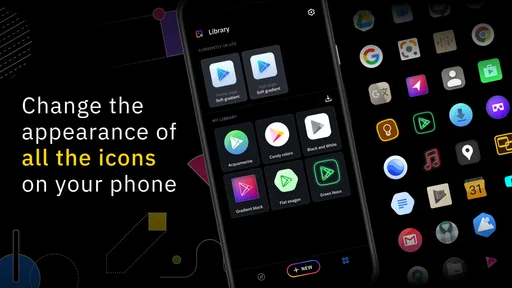
The first thing that strikes you about Icon Pack Studio is its endless potential for creativity. Seriously, it’s like having a mini design studio right in your pocket. You get to create icons that are as unique as your fingerprint. Want a neon pink flamingo for your messaging app? Go for it! The app gives you the tools to make it happen.
Getting Started
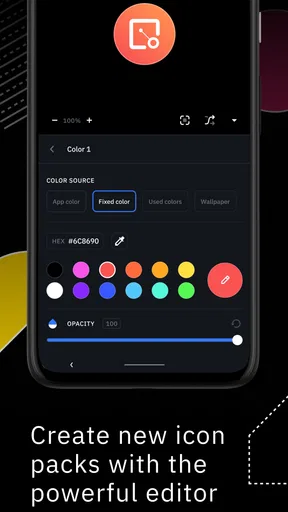
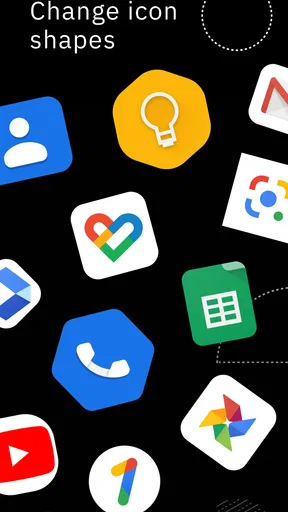
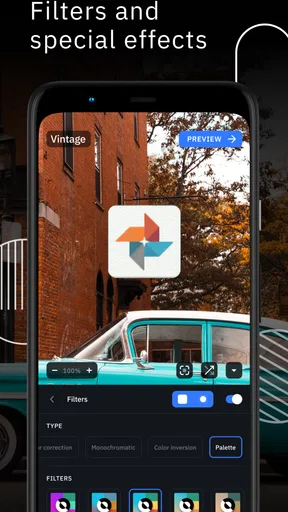
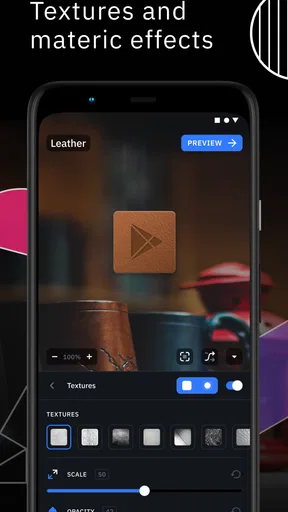
So, what’s the deal with setting it up? Honestly, it’s a breeze. Once you download and install the app, you’re greeted with a simple, intuitive interface that even your grandma could navigate. You start by selecting a template or creating a new one from scratch. The design possibilities are endless—you can tweak colors, shapes, shadows, and even textures.
One of my favorite features is the ability to preview your icons in real-time. It’s like having a virtual dressing room for your apps. And if you’re feeling a bit lazy or uninspired, there are plenty of premade packs to choose from.
Turning a design into a usable home screen
My practical workflow is to make one deliberate change at a time, then look at the preview as a whole rather than judging each icon in isolation. A strong shadow may look appealing on one symbol but make a full grid feel heavy. Likewise, a color that seems subtle in the editor can dominate against a pale wallpaper. Previewing before committing helps me catch those mismatches early.
Worth Reading Before You Choose

EA SPORTS FC Mobile 26 Is a Bigger Football Game, but It Takes Time

Flipboard Shows What News Apps Must Do Beyond the Feed

Switching to Android Auto Means Rethinking Your Driving Routine

Google Calendar Makes a Crowded Week Easier to Manage

Ludo King Makes the Most of the Minutes Between Plans

Baby Panda World Brings Quick Play to Modern Phones, but Its Game Library Feels Busy
For an everyday example, imagine I switch to a darker wallpaper for the evening and want the icons to feel less colorful without replacing the wallpaper or rebuilding my home screen. I can work toward a subdued palette, check whether the shape and contrast still make app symbols easy to recognize, and then carry that visual direction into the launcher. The useful outcome is not merely a different look; it is a screen that still works at a glance.
There is a small but important distinction between designing an icon style and having it appear everywhere. The editor is one part of the process; the launcher is the handoff that displays the pack on the home screen. I would check launcher compatibility before spending time refining a detailed design. If the launcher cannot use the result as intended, the polished preview may not translate into the setup I wanted.
Functionality and Features
Now, let's talk features. Icon Pack Studio doesn’t skimp on the details. You can adjust the size, angle, and even the color gradient of your icons. The app integrates smoothly with most major launchers, which is a huge plus. You don’t have to worry about compatibility issues, just install your icons and you're good to go.
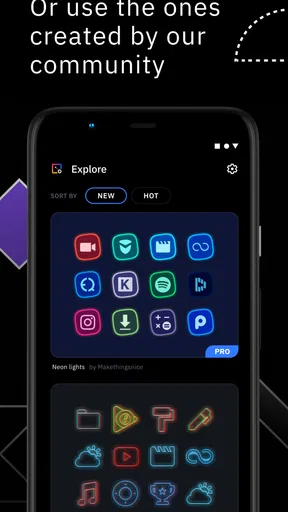
Another cool aspect is the community feature. You can upload your designs and check out what other users have created. It’s like a Pinterest board for icon enthusiasts, offering endless inspiration.
Getting more from the editor
A useful way to approach the controls is to treat them as a shared visual recipe, not a reason to decorate each app differently. I would first settle on the overall color and shape, then adjust scale and shadow only if the icons look unbalanced together. This keeps a pack coherent and makes it easier to tell whether a change improved the whole screen or merely one preview.
Community designs can help when I am stuck, but I treat them as starting points rather than automatic answers. A design that looks striking in someone else’s setup may clash with my wallpaper or make familiar app symbols harder to pick out. Borrowing a color idea or a shape direction, then adapting it to my own screen, is more useful than copying a look without checking how it fits.
There is also a practical reason to keep an original design simple: the home screen is used in passing. If I need to identify a messaging or map app quickly, decoration should not get in the way. I would favor clear silhouettes and enough contrast over tiny visual flourishes. That is a personal design choice, but it is one of the ways customization can improve daily use instead of becoming just a screenshot project.
The User Experience
Using Icon Pack Studio is as smooth as butter. The app is responsive and doesn’t lag, even when you're working on complex designs. I’ve tried a few similar apps before, and I often found myself waiting for things to load or glitch out. Thankfully, that’s not the case here.
Moreover, the app’s developers are pretty active. They roll out updates regularly, squashing bugs and adding new features based on user feedback. It’s refreshing to see an app that truly listens to its community.
Who benefits from this approach?
I would recommend it to someone who enjoys adjusting the look of a phone and wants icons to coordinate with a particular wallpaper, color scheme, or general mood. It is especially appealing if ready-made packs nearly fit but always leave one detail feeling wrong. The ability to work with templates, adjust their appearance, and preview the result makes that sort of fine-tuning more approachable than starting every icon from nothing.
I would steer away from it if the priority is a one-tap makeover, if the current launcher does not support the pack workflow, or if changing icons is not worth spending time on. A standard downloadable pack is a simpler choice for someone who just wants a cohesive set and does not care about tailoring it. A launcher with its own built-in icon controls may also be a better fit for a person who wants fewer handoffs between apps.
Is It Worth It?
So, is Icon Pack Studio worth your time? If you’re someone who loves to personalize every aspect of your phone, then absolutely. It’s a fantastic tool that lets you flex your creative muscles and make your phone truly yours. Plus, it’s free to download, with optional in-app purchases for extra features.
One thing to remember though, you’ll need a compatible launcher to fully enjoy the app's capabilities. But once that’s sorted, you’re in for a treat. Your phone will be the envy of everyone around you.
It is free to install, with optional in-app purchases priced from ninety-nine cents to eleven dollars and ninety-nine cents per item. I would start with the free experience and decide whether any paid option solves a specific need, rather than assuming that spending is required to make a satisfying design. The app is rated for Everyone, so it is intended for a broad audience, though younger users may still appreciate help choosing a launcher and keeping a design readable.
The current release is version 2.3 build 004, and it requires Android 7.0 or later. Those details matter if you are setting up an older device or comparing the experience across phones: check the system requirement before planning a full redesign. The app has a 4.2 average from around 18,000 ratings and more than 5 million installs, which suggests it has found a sizeable audience, but those figures cannot tell you whether your own launcher will suit the workflow.
In comparison with ordinary icon packs, the strongest reason to choose this app is the chance to adjust the style rather than accept a fixed set. In comparison with a full launcher makeover, it is a narrower tool: it focuses on icon design, so it does not replace decisions about widgets, layout, or wallpaper. I like that focus when icons are the missing piece, but I would not install it expecting one app to redesign the entire phone.
In conclusion, Icon Pack Studio is one of those apps that you didn’t know you needed until you try it. It’s not just about changing the look of your icons; it’s about making a statement and letting your phone reflect your personality. Give it a shot, and I promise you’ll have a blast.
My honest advice is to begin with a small goal: make the icons sit comfortably with the wallpaper you use most, then live with that setup before adding more detail. If the result feels clearer and more personal, the editor has done its job. If you find yourself adjusting endlessly or fighting your launcher, a ready-made pack or built-in launcher styling will probably be the more pleasant choice.
Pros
- Highly customizable icon designs.
- User-friendly interface for beginners.
- Regular updates with new features.
- Compatible with most launchers.
- No ads in the free version.
Cons
- Limited features in the free version.
- Some icons may not render well.
- Requires launcher for full functionality.
- Occasional crashes on older devices.
- In-app purchases can be pricey.
FAQs for Icon Pack Studio
What is Icon Pack Studio and how does it work?
Icon Pack Studio is a powerful app that allows users to create custom icon packs for their Android devices. It works by providing a comprehensive suite of design tools that let you personalize icons with colors, shapes, and effects. Once you've created your icon pack, it can be applied to any launcher that supports custom icons.
Is Icon Pack Studio compatible with all Android devices?
Icon Pack Studio is compatible with most Android devices running Android 5.0 (Lollipop) and above. However, the app's functionality depends on the launchers you use, as it requires a launcher that supports custom icon packs. Popular launchers like Nova, Apex, and Action Launcher are fully compatible.
Do I need any design skills to use Icon Pack Studio?
No specific design skills are required to use Icon Pack Studio. The app is designed with an intuitive interface that guides users through the process of creating custom icons. While having a creative eye can enhance your designs, the app provides templates and effects that make it easy for anyone to create professional-looking icons.
Are there any costs associated with using Icon Pack Studio?
Icon Pack Studio is available for free on the Google Play Store, offering a wide range of features at no cost. However, there are in-app purchases available that unlock additional design elements and advanced features. These optional purchases are intended for users looking to expand their creative possibilities.
Can I share the icon packs I create with others?
Yes, Icon Pack Studio allows you to export and share your custom icon packs with others. You can save your creations as APK files, which can then be shared with friends or uploaded to the Play Store if you wish. This feature makes it easy to showcase your creativity and provide unique icon packs to the community.


